How to Switch Pico 4 VR Headset from China to Global Firmware
by Joseph Then / in Tech Guide
7 min
This article is for reference only. Do this at your own risk.
This guide will walk you through the process of changing your Pico 4 VR headset's operating system from the China region firmware to the global version.
Important Notes Before Proceeding
⚠️ Warning:
- This process will factory reset your device
- All locally stored data will be erased
- Some China-specific apps and features may no longer be available
- Ensure your headset has at least 50% battery before starting
Preparation
-
Backup your data:
- Sync important saves to the cloud
- Note down your installed apps
- Save any personal files to a computer
-
Download the correct firmware:
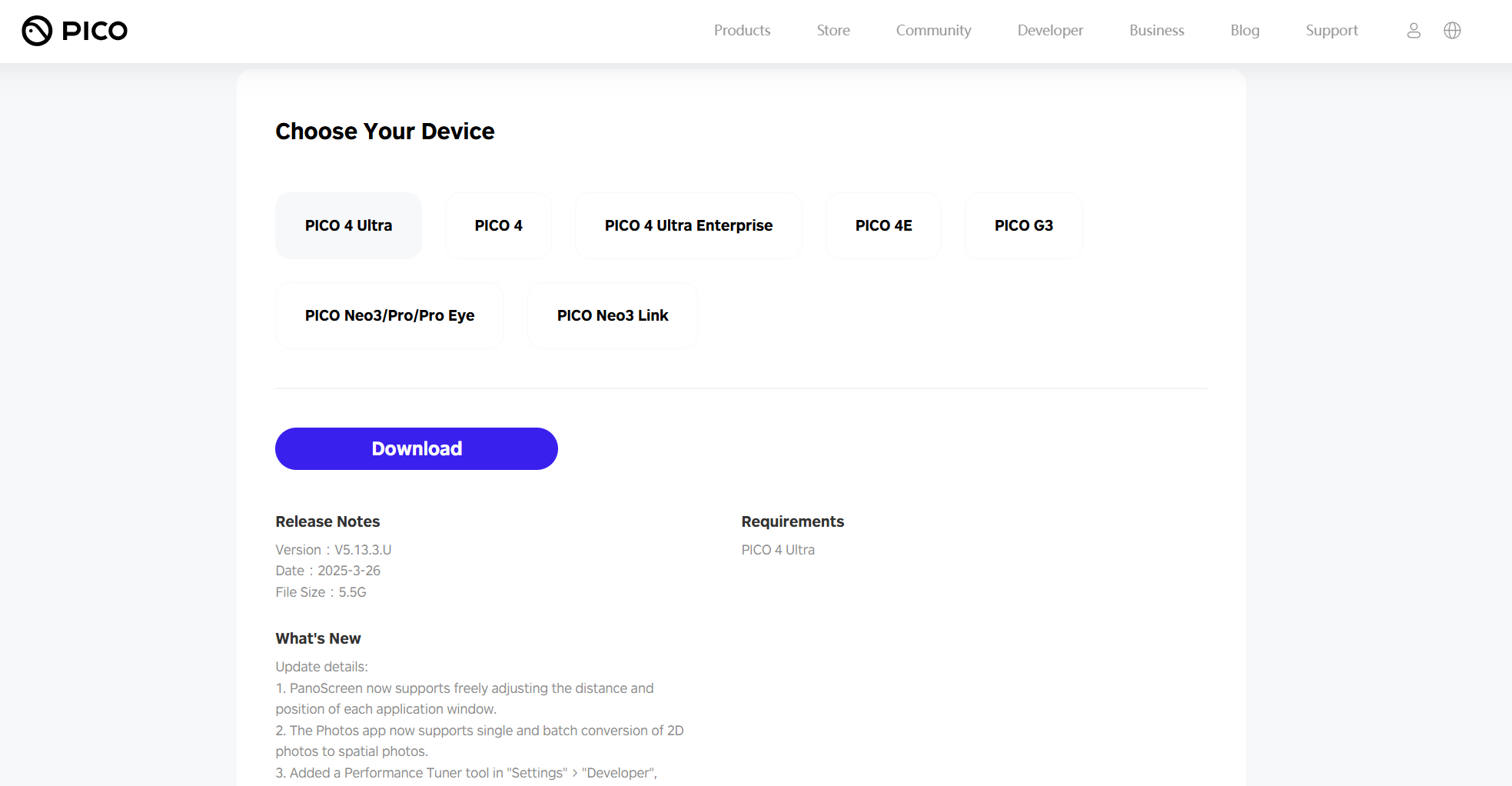
- Visit Pico Global OS Download
- Select the latest global version for your Pico headset model
- The file should be a
.zipfile
-
Download SDK Platform Tools:
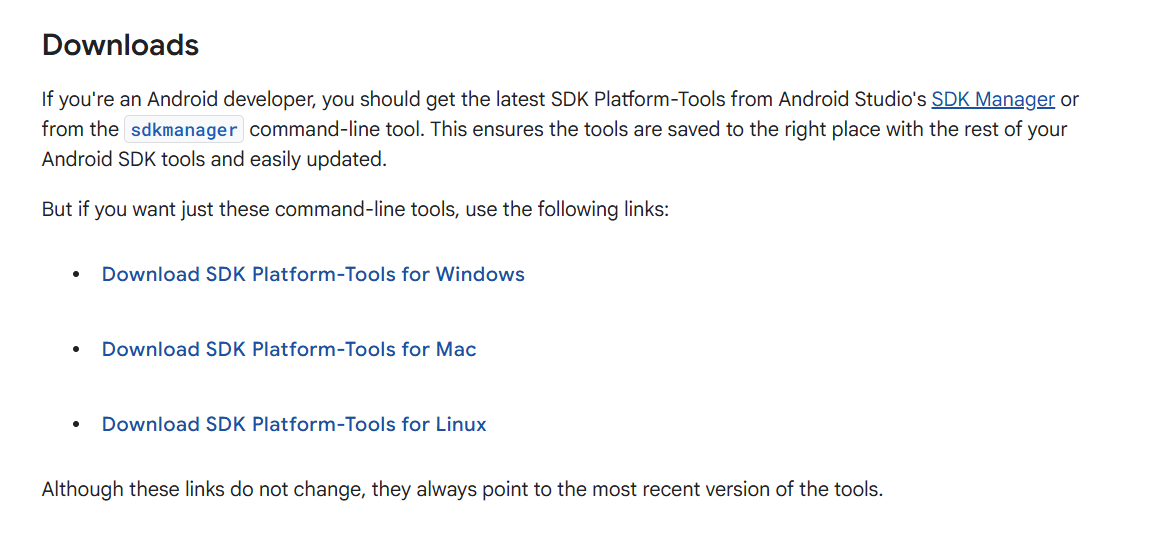
- Visit SDK Platform Tools
- Download SDK Platform-Tools for your platform
- This tool includes
adb
Installation Steps
Reference: PicoVR FAQ - Offline Upgrade System
1. Transfer the Firmware
- Connect your Pico headset to your computer via USB cable
- On your computer:
- Navigate to the Pico's root directory
- Create a folder named
dloadif it doesn't exist (case-sensitive) - Copy the downloaded
.zipfile directly into this folder- Do not unzip the file
- Do not rename the file
2. Initiate the Update
- On your Pico headset:
- Go to Settings > System Update
- In the top right corner, tap the menu button
- Select Offline Update
- Your Pico headset should start the update process
3. Complete the OS Update Process
- Wait for the update to complete (typically 15-30 minutes)
- The device will reboot several times
- Do not interrupt the process
- After completion, you'll need to:
- Go through initial setup
Congratulations, your Pico should now be using the Global firmware version.
Replacing Chinese Version of Apps with the Global Version
After completing the firmware update/switching process, you may notice that you are still unable to login using your global
Pico account nor connect through the Pico Connect app.
This is because the User Center app and a few other app are still using the Chinese version.
We need to manually replace and overwrite them with the global version.
Enabling Developer Mode and USB Debugging on Pico
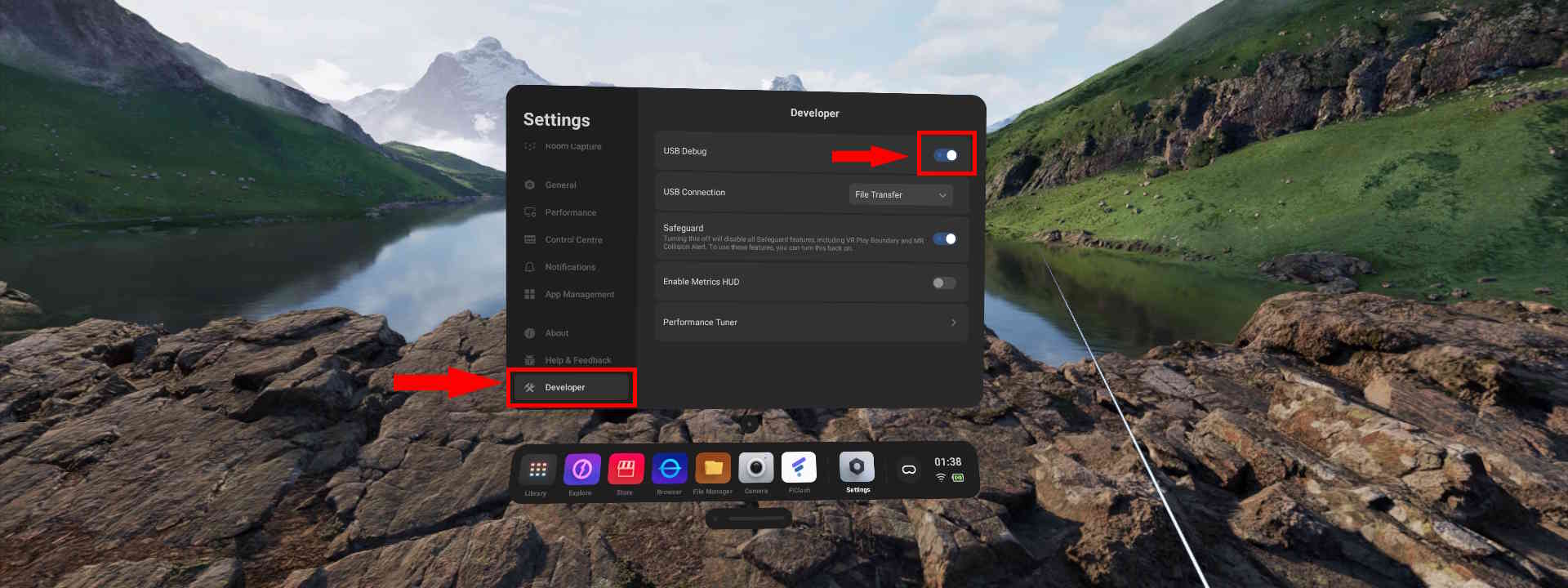
To allow sideloading apps on our Pico using the ADB tool, we need to enable developer settings on the Pico and enable USB debugging.
- Open Settings on your Pico headset
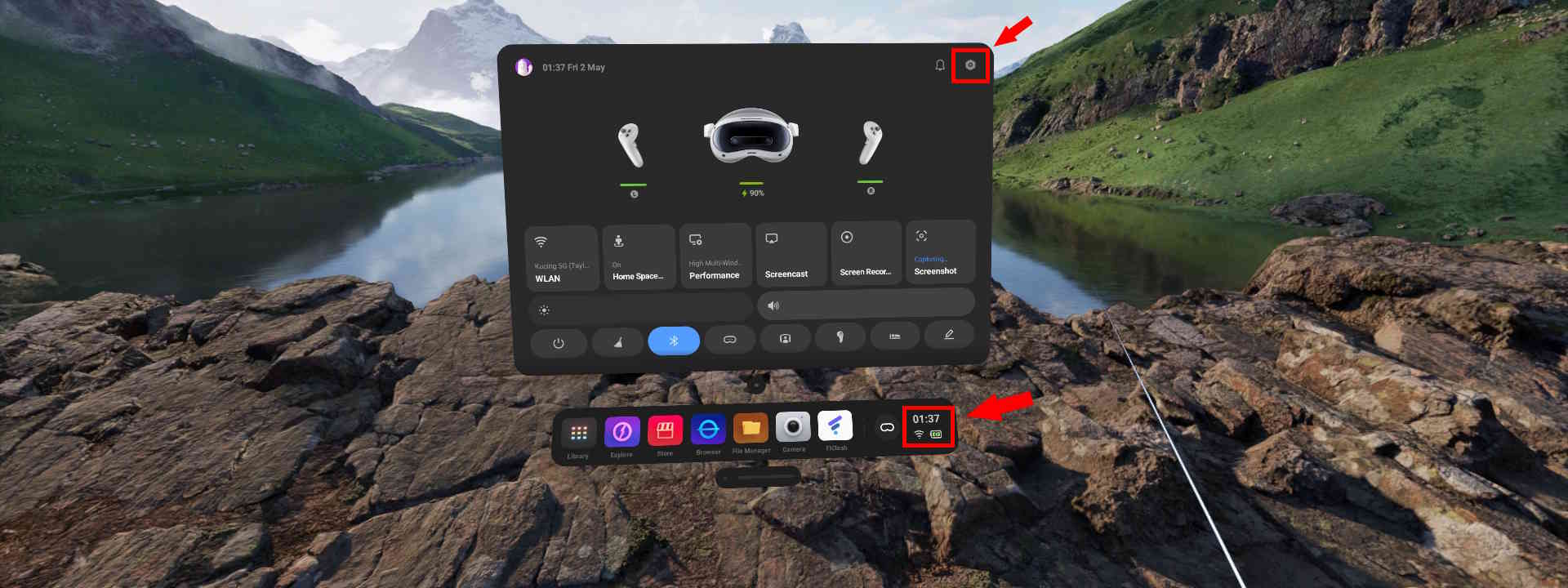
- Go to the About menu and click on the
Software Version10 times until the Developer option appears on the left panel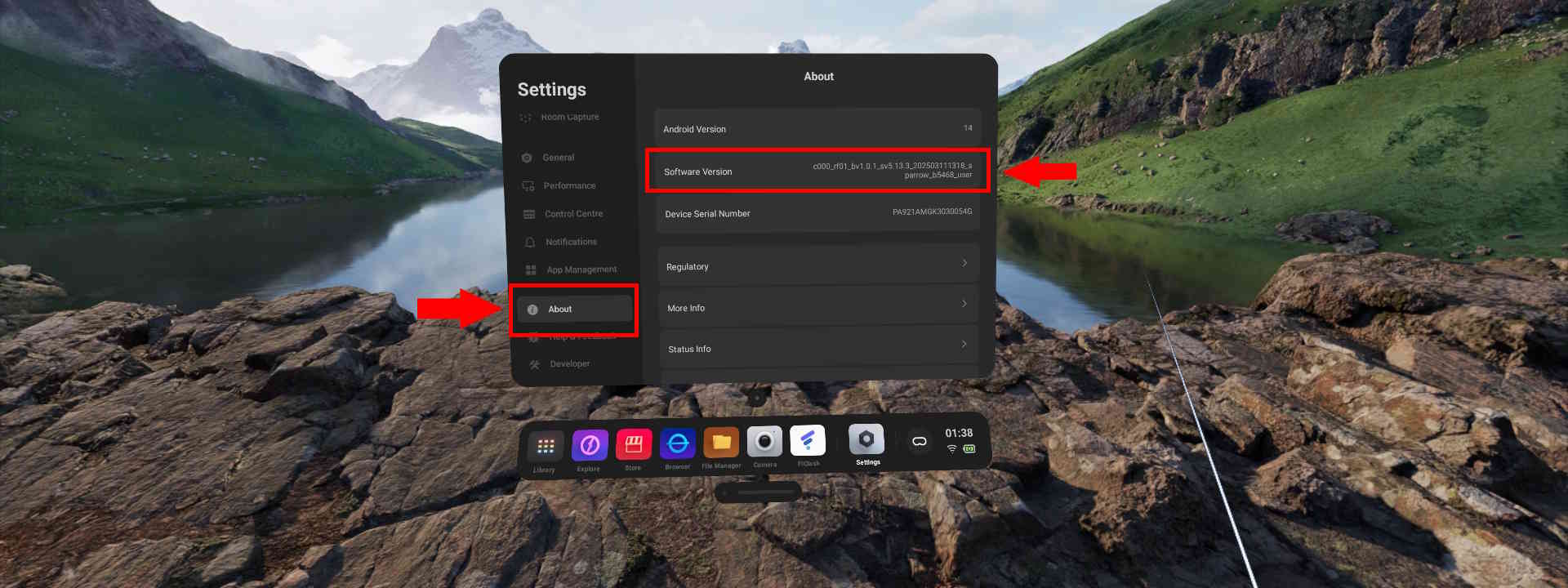
- Go to the Developer menu and toggle USB Debug on
Installing Global Apps
Downloading the Global APKs
Download the global versions of the apps here: Global APK Package Download
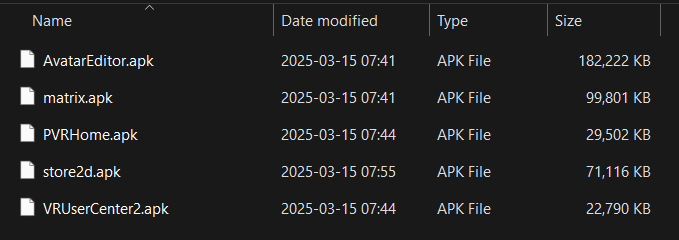
After downloading, you should have the file pico_global_apk.zip. Extract this to a folder on your computer. The package contains these 5 essential APK files:
Installation Steps
-
Connect Your Pico Headset
- Use a USB cable to connect your Pico to your computer
- Ensure USB debugging is enabled on your headset
-
Prepare the Installation Environment
- Open a terminal (Command Prompt or PowerShell) in the directory where you extracted the APKs
- Verify ADB connectivity with:
Expected output (your device ID will differ):adb devicesList of devices attached PA921AMGK3030054G device - Troubleshooting: If multiple devices appear, either:
- Disconnect other Android devices, or
- Specify your Pico device with each command using
-s [deviceID]
-
Install the APKs Run these commands one-by-one (the flags ensure proper installation):
adb install -t -r -d matrix.apk adb install -t -r -d VRUserCenter2.apk adb install -t -r -d PVRHome.apk adb install -t -r -d store2d.apk adb install -t -r -d AvatarEditor.apk-t: Allows test packages-r: Replaces existing application-d: Allows version code downgrade
-
Verification
- Wait for "Success" messages for each APK
- Restart your headset to complete the process
Completion
Your Pico headset should now be running the Global OS with all international apps available!
Post-Installation
✔️ Verify successful conversion:
- Check for global store access
- Confirm language options include English and other global languages
- Verify your OS version in Settings > About Device
Conclusion
By following these steps, you've successfully converted your Pico to the global firmware, giving you access to the international app store and global features. Enjoy your newly region-free VR experience!
For official support, visit Pico Global Support.
Other Guides
Owomushi: A Pico VR Resource Site - it has a guide on how to switch regions and other resources like APK packages.
Last updated: